Network isolation
Most MCP servers require network access to function properly, for example, to access APIs, download data, or communicate with other services. However, malicious or misconfigured servers can also exfiltrate sensitive data or download unwanted content.
When you install an MCP server in ToolHive, you choose how the server reaches the network. Network isolation routes the server's outbound HTTP and HTTPS traffic through an egress proxy that restricts it to the destinations you allow.
Network isolation supports HTTP and HTTPS connections only. Other protocols are not filtered by the proxy; use No isolation or Host networking if your server needs raw TCP or a non-HTTP protocol.
Network isolation works by routing outbound traffic through an HTTP proxy.
ToolHive automatically injects HTTP_PROXY, HTTPS_PROXY, and their lowercase
equivalents into the MCP server container pointing to the egress proxy. The MCP
server must respect these variables for outbound connections to succeed.
ToolHive blocks outbound traffic from servers that bypass standard proxy
environment variables (for example, servers that use raw TCP sockets or
hardcoded connections).
Configuring network access
Network access modes are available for local MCP servers installed from the registry or custom servers. They do not apply to remote MCP servers, which are hosted and reached over the internet outside of ToolHive's control.
During the MCP server installation, select the Network access tab in the configuration form and choose one of three modes:
- No isolation: the server has unrestricted outbound network access. Use this for trusted servers or when your server needs a protocol other than HTTP or HTTPS.
- Host networking (Advanced): the server's container shares the host machine's network namespace directly. No egress filtering is applied. Use this only when you understand the security implications.
- Isolate behind an HTTP proxy: the server's outbound HTTP and HTTPS traffic is routed through ToolHive's egress proxy, which only forwards connections to the destinations you allow.
Registry servers default to Isolate behind an HTTP proxy unless the registry entry declares a different mode. Custom servers default to No isolation; switch to the proxy mode to opt in.
Restricting proxied traffic
When you choose Isolate behind an HTTP proxy, an Allowed destinations radio appears:
- Anywhere: allow HTTP and HTTPS traffic to any destination.
- Selected destinations: only allow the specific hosts and ports you list below.
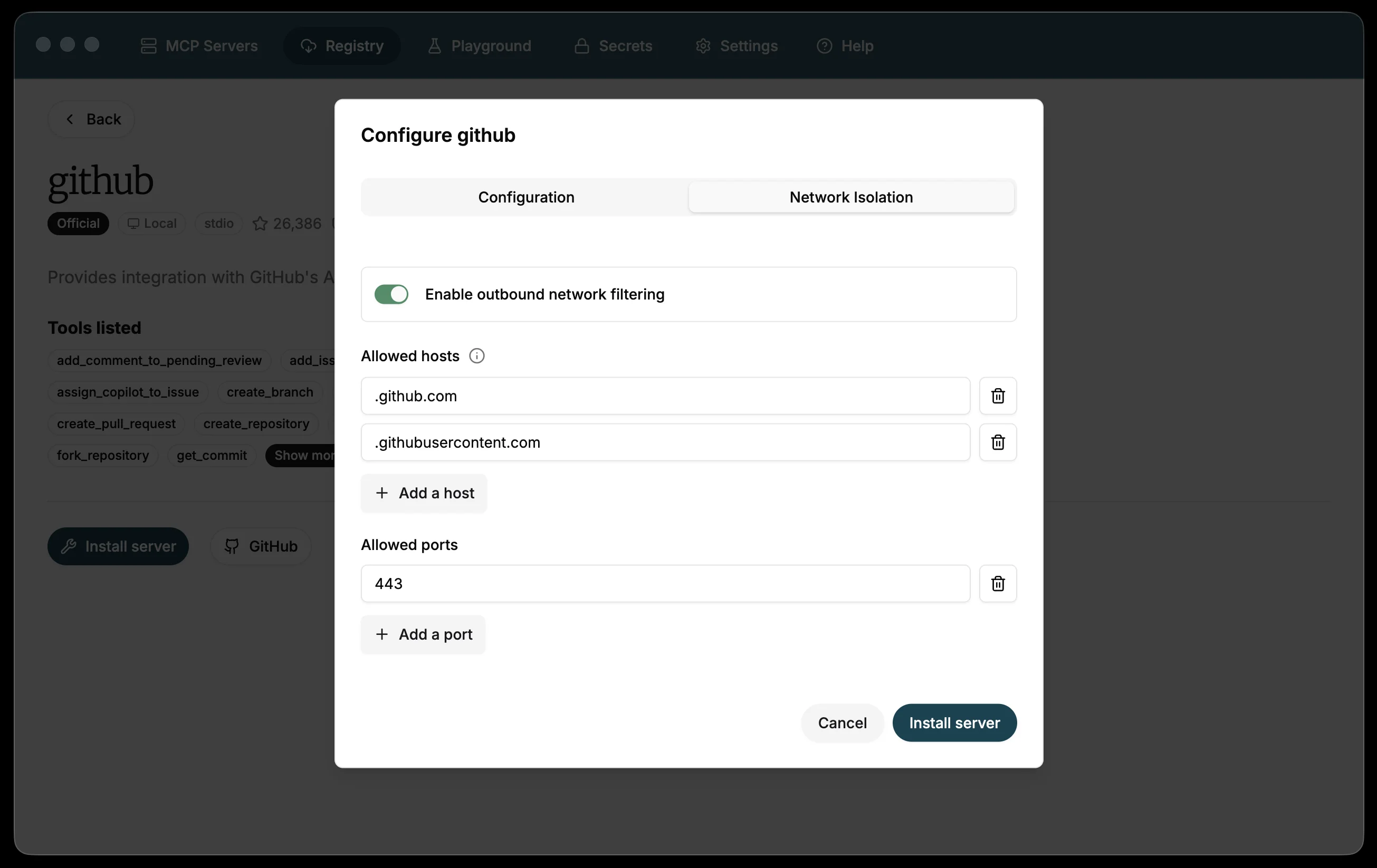
If Selected destinations is chosen, any safe defaults defined by the registry entry are pre-loaded in the form. You can accept these defaults or customize the settings to specify which hosts and ports the MCP server is allowed to access:
-
Allowed hosts:
A list of hostnames or IP addresses that the MCP server is allowed to access. This can include APIs, data sources, or other services that the MCP server needs to function properly.tipTo allow access to all subdomains under a specific domain, add a leading period (
.) in front of the hostname. For example, to allow access to all subdomains ofgithub.com, enter.github.comin the allowed hosts list. -
Allowed ports:
A list of ports that the MCP server is allowed to use for outgoing connections. This can help prevent the MCP server from accessing unauthorized services or resources. For example, port 443 is the default port for HTTPS connections.
If you choose Selected destinations but leave both allowed hosts and allowed ports empty, the MCP server cannot reach any external resources. This can be useful for MCP servers that do not require network access or for testing purposes; the form displays a warning when this configuration is detected.
Example configuration
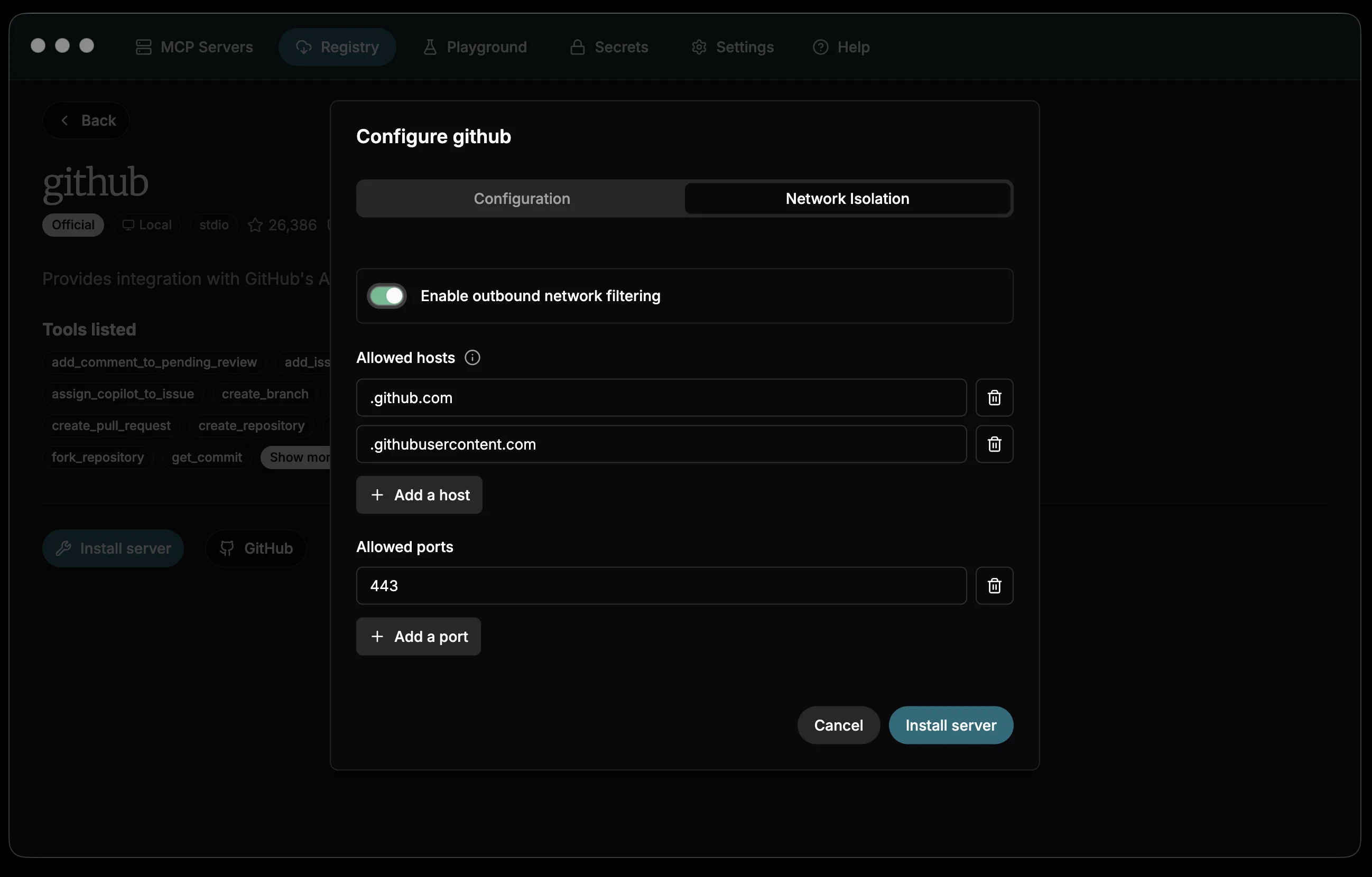
With Isolate behind an HTTP proxy and Selected destinations chosen, the
configuration pictured below allows the MCP server to access api.github.com
and all subdomains of githubusercontent.com on port 443 (HTTPS):
Accessing other workloads on the same container network
To allow an MCP server to access other workloads on the same network, choose Isolate behind an HTTP proxy with Selected destinations, then list the appropriate hostnames and ports. This is commonly needed when your MCP server needs to communicate with databases, APIs, or other services that are running on your local host during development.
For example, in Docker environments, you can add host.docker.internal to
access services on the host. host.docker.internal is a special hostname
provided by Docker that resolves to the host machine's IP address from within
containers.
- Allowed hosts:
host.docker.internal - Allowed ports:
3000
Next steps
- Customize which tools each server exposes to your AI clients
- Configure client access to connect your AI clients to ToolHive
Related information
- Run MCP servers
- Network isolation (CLI guide) for architecture details and advanced configuration
Troubleshooting
MCP server can't reach an external service
-
Check the network access mode and allowed destinations. Open the server's settings, select the Network access tab, and confirm the mode is appropriate for the server. If the server is set to Isolate behind an HTTP proxy with Selected destinations, confirm the hostname and port the server needs are listed. Proxied network isolation only supports HTTP and HTTPS, so direct TCP connections (databases, custom protocols) won't work in this mode.
-
Check the server logs from the MCP servers page. Select the server, open the logs panel, and look for connection errors or denied requests.
-
If the logs show no outbound connection attempts at all, the server may not be respecting the
HTTP_PROXYandHTTPS_PROXYenvironment variables that ToolHive injects. Servers that bypass standard proxy variables (for example, those using raw TCP sockets or hardcoded connections) will fail regardless of your allowed hosts configuration. See Network isolation troubleshooting in the CLI guide for more detail on diagnosing this.